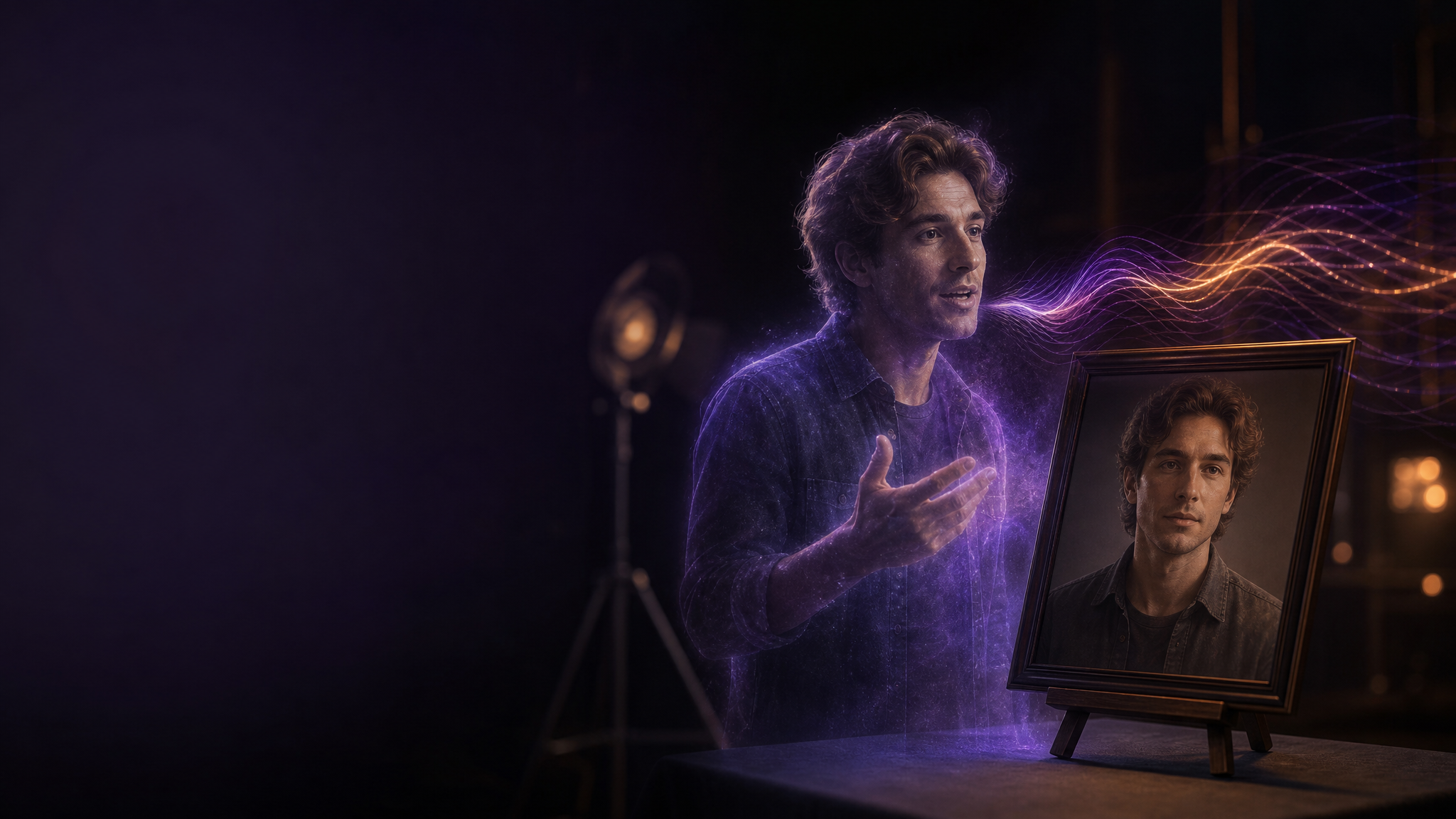
One portrait plus one voice clip, and the person in the picture starts talking.
That is Master Digital Double. The face, outfit and background come straight from the image you give it; the lip movement, expressions and gestures follow the audio. Use it for product voice-overs, course explainers, character monologues, social-media intros — or have a character sing a few lines.
Fastest route: three steps to your first one
1. Turn on Master Digital Double — sidebar, "Create → Studio". Switch the input box to Video on the left, then tap the "Master Digital Double" pill in the row below. The pill lights up and the input area turns into a dedicated panel.
2. Add a portrait and audio — "Upload portrait" on the left takes one image; "Upload audio" on the right takes a wav or mp3. Once the audio is in, it shows "✓ N s".
3. Generate — press "Generate Master Digital Double". The button shows exactly how many credits this one costs.
The finished video lands on the project's asset wall, labelled "Master Digital Double".
Who can use it
Any paid plan. On the free plan the pill does not appear.
Choosing a portrait
Everything on screen comes from this one image — who the person is, what they wear, where they stand, the camera angle. So prepare the picture you want the video to look like.
Four rules for picking one:
| Rule | Why |
|---|---|
| The face is large and clear | If the face is small in frame, the mouth may not move. Half-body or chest-up framing is the safest. |
| Front-on or slightly turned | Facing away from the camera or extreme high/low angles make the speech look worse. |
| A natural pose | Handstands, hard twists and other extreme poses tend to fall apart once they move. |
| The aspect ratio is the video's aspect ratio | The framing follows the image. Want a vertical video? Give it a vertical image. |
A photo works, and so does a character image you generated in the Studio (download it, then upload it here).
⚠️ Only use portraits you have the right to use — yourself, or someone who has given you their consent. Do not use photos of celebrities, public figures or strangers.
Preparing the audio
| Item | Spec |
|---|---|
| Format | wav or mp3 |
| Length | 4 seconds to 5 minutes (4–300 s) |
| Size | Under 15MB |
The video is exactly as long as the audio — a 12-second clip gives a 12-second video. There is no separate duration setting.
It can be speech or singing. The character understands what the audio says and will add expressions and small gestures that fit the content.
When preparing it:
- Clean vocals work best. Loud background music or several people talking at once throws off the lip sync.
- Trim silence at both ends. Three silent seconds at the start means three seconds of someone standing still — and they still count toward the cost.
- Past 15 seconds, stability starts to drop. Split a long monologue into several clips, make one video each, and join them.
Files that are out of range, or whose length can't be read, are rejected the moment you pick them — nothing gets uploaded for nothing.
Prompt (optional)
The box under the panel takes a prompt, and you can generate without one. The portrait decides what it looks like, the audio decides what is said, and the prompt only handles how it moves:
- Camera — the camera slowly moves from the side to the front, a gentle push-in
- Emotion — calm, a hint of a smile, eyes welling up
- Speaking state — talking to the camera, singing softly, speaking through tears
- Actions — first picks up a coffee cup, then smiles and nods
- What happens in the background — car lights sweep past the window, the person beside her turns to look
A good example:
The camera slowly moves from the side to a frontal medium shot. She looks calm, first gently puts down the book in her hands, then looks at the camera and talks, smiling slightly at the end.
Five tips for writing the prompt
- Write it like telling a story — full sentences, not a pile of keywords.
- Only describe what moves — the face, hair and clothes are already in the image; repeating them doesn't help and can get in the way.
- Say "is talking" or "is singing" — spelling it out gives better lip sync.
- Order sequential actions with "first… then… finally…" — don't cram too much in. The longer the audio, the fewer and steadier the actions should be.
- With several people in frame, say who is talking — and describe how the others react.
What it can't do: change the scene, change the outfit, or bring in someone who isn't in the image to speak. All of that has to be settled in the portrait.
💡 A bad prompt is worse than no prompt. When in doubt, leave it empty and generate one first.
Prompts can be written in Chinese, English, Japanese, Korean, Spanish or Indonesian, up to 2,000 characters; under 500 is recommended.
✨ AI refine
The top-right corner of the prompt box has an "AI refine" button. Write one line in your own words about the movement you want and press it — it rewrites the prompt the way Master Digital Double reads best, and plans how much action fits the length of your audio.
After that you can keep adjusting by just saying it, e.g. "fewer gestures" or "wave at the camera at the end". When you're happy, apply it and the new prompt replaces the one in the box.
There is a daily allowance of free rewrites (30–80 on paid plans, depending on the plan); after that, each round costs 3 credits.
Credits
15 credits per second, based on the audio length:
- Seconds are rounded up to a whole second (10.2 s counts as 11 s).
- The minimum is 4 seconds.
| Audio length | Credits |
|---|---|
| 4 s | 60 |
| 10 s | 150 |
| 15 s | 225 |
| 30 s | 450 |
| 1 min | 900 |
| 5 min | 4,500 |
Once the audio is uploaded, the generate button shows the actual cost of this one. If generation fails, the credits are refunded in full automatically.
After you submit
| Status | What you can do |
|---|---|
| Queued | When many people are generating at once, it waits in line and starts automatically. Don't want to wait? Cancel it — the credits come back. |
| Generating | The longer the audio, the longer the wait. You can close the page and do something else; it will appear on the asset wall when done. |
| Failed | The credits have already been refunded. The card says why. |
Each account can have at most 3 queued or generating at once — wait for one to finish before sending the next. Anything that waits in the queue too long is cancelled automatically with a full refund.
Not happy? Go again
On the asset wall, press "Reuse" on the video. The portrait, audio and prompt all go back into the Master Digital Double panel. Tweak the prompt or swap the audio and press generate — no re-uploading.
Quick reference
| I want to… | Where to go |
|---|---|
| Make one | Sidebar "Studio" → switch to "Video" → the "Master Digital Double" pill |
| Go back to normal video mode | Tap the "Master Digital Double" pill again |
| Have AI write the movement | "AI refine" at the top right of the prompt box |
| Tweak the last one and regenerate | "Reuse" on the asset card |
| See what this one costs | The number on the generate button (appears after the audio is uploaded) |
FAQ
The lips don't match?
Check three things first: is the face large enough in frame, is the audio clean vocals, and does the prompt say "is talking". Those fix most cases.
The face changes halfway through?
Usually the prompt has the character turn around, leave the frame for too long, or move too much. Cut down the actions and keep the camera at a medium shot or closer.
Can I change the background or the outfit?
No. The whole frame follows the portrait — for a different background, use an image with a different background.
Can the video be longer than the audio?
No, the video is exactly as long as the audio. Want a short hold at the end? Leave a little silence at the end of the audio (that part counts toward the cost too).
Can I use a cartoon character or an animal?
You can try. The clearer the facial features and the more front-on, the better it works.
Why is the cost slightly different from my math?
Seconds are rounded up — 10.2 s counts as 11 s. The number on the generate button is exactly what will be charged.
Why can't I see the pill on the free plan?
Master Digital Double is a paid-plan feature. Upgrade to any paid plan and it appears.
For videos with a story and blocking, go back to the Studio's normal video mode — see "The Studio Handbook". To keep the same character on the same face throughout a whole film, see "The Casting Handbook".